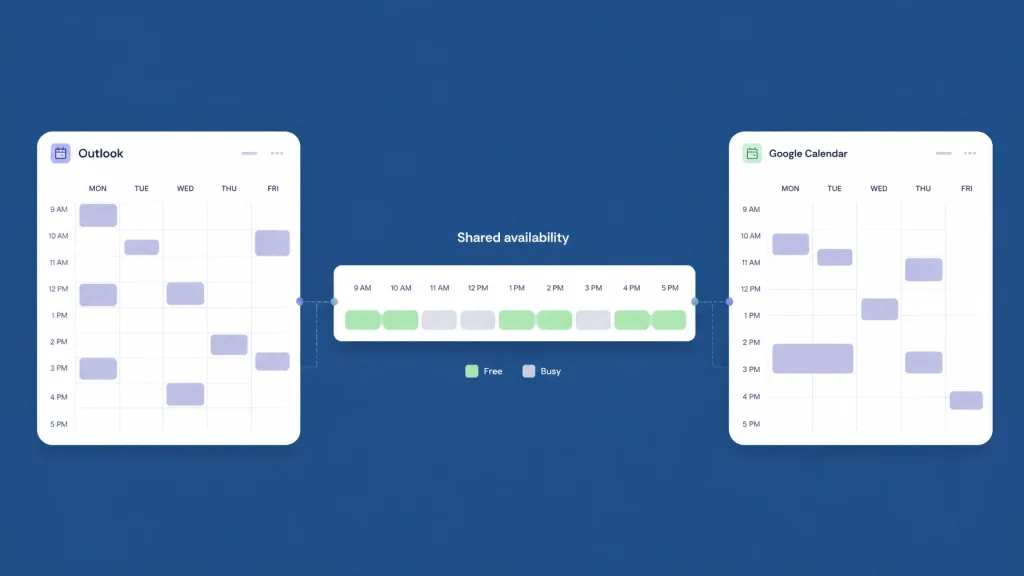
Outlook Google Calendar availability checker for cross company scheduling—see free busy calendar across organizations in one view and book faster without exports.
When one company uses Outlook and another uses Google Calendar, finding a meeting time can become unnecessarily complicated.
You ask for availability. Someone checks their calendar. Another person sends an alternative. A time zone gets missed. Someone shares an ICS link. Then the process starts again.
You can avoid that entire exchange.
CalendarConnect lets you check external availability across Outlook and Google Calendar in one shared view. Each participant authorizes their calendar once. CalendarConnect compares free and busy status, finds mutual openings, and helps you book the meeting without exporting calendars or moving your team to a new platform.
That is the practical difference between a basic outlook google calendar availability checker and a scheduling workflow designed for cross company scheduling.
Outlook and Google Calendar work well: until teams cross company lines
Outlook and Google Calendar both make internal scheduling straightforward.
In Microsoft 365, Outlook users can use Scheduling Assistant to view availability for people within their organization. In Google Workspace, users can use Find a time to compare calendars and suggested meeting times.
The challenge starts when participants belong to different organizations.
For example:
- Your project team uses Microsoft 365.
- Your client uses Google Workspace.
- A vendor uses Outlook.com.
- A consultant works from a personal Gmail account.
- Everyone has different working hours and time zones.
Each calendar system can manage its own users effectively. But free busy calendar sharing across companies often depends on administrative settings, calendar permissions, federation, or shared links.
Microsoft explains that organizations can enable external calendar sharing and choose whether outside users see free/busy information only or more detailed calendar data. Google also notes that administrators must enable the Google Calendar Connector to show availability for Microsoft Exchange users in Google Calendar.
Those options can work. They can also require coordination between IT administrators at multiple companies.
For everyday vendor, client, and partner meetings, you need a simpler way to find meeting times across companies.
Why exporting calendars and sharing ICS links creates friction
Exporting a calendar or sharing an ICS link may seem like a quick solution. In practice, it creates new problems.
Calendar exports become outdated
A downloaded calendar file is only a snapshot. If someone adds a meeting later, the exported information does not automatically reflect the change.
You may think a time is open when it is no longer available.
ICS links require setup and maintenance
An external participant may need to:
- Create or publish a calendar link.
- Choose the correct visibility settings.
- Copy the link.
- Send it to another person.
- Subscribe to it in Outlook or Google Calendar.
- Update or revoke access later.
That is too much administrative work for a meeting that should take a few minutes to arrange.
Event details may be exposed unnecessarily
Some sharing methods reveal more than availability. Titles, locations, descriptions, or attendee information may become visible depending on the permission level.
Most external coordination does not require those details. You only need to know whether a person is free.
Status emails do not create shared visibility
A message such as “I am free Tuesday at 2 p.m.” only represents one person’s schedule at one moment.
It does not show the availability of the full group. It also creates another reply cycle when the time no longer works.
You need one current view: not another thread to manage.
CalendarConnect checks free/busy across both systems
CalendarConnect is built for cross organization calendar coordination.
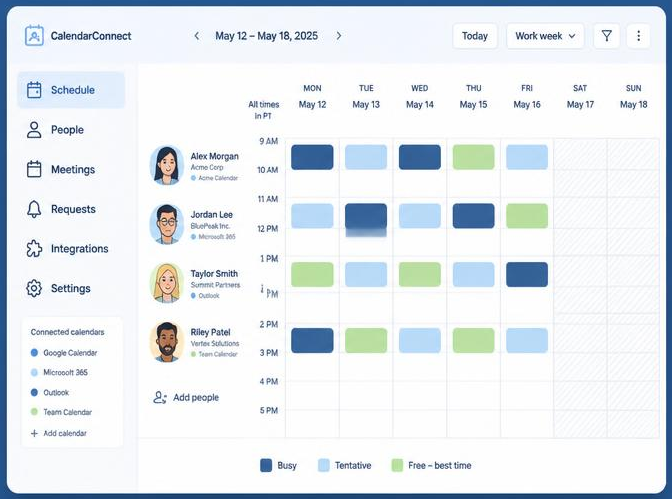
Create a project. Add participants from different companies. Each participant authorizes their calendar once. CalendarConnect then compares availability across the group.
The result is a shared view of mutual openings.
It works with the calendar systems your participants already use, including:
- Google Calendar
- Microsoft 365 and Outlook
- Apple Calendar as support becomes available
There is no calendar migration. There is no need to create a second work calendar. Participants continue using the tools they already know.

Only free/busy status is shared
CalendarConnect is designed to provide visibility without exposing private calendar content.
Participants authorize free/busy access only. Other people can see whether a time is available, but they cannot see:
- Meeting titles
- Descriptions
- Attendee lists
- Private notes
- Locations
- Other event details
This makes free busy calendar across organizations practical for client work, procurement, partnerships, and vendor coordination.
The permission is clear:
Available or busy: not what is on the calendar.
Participants can also revoke access through their calendar account settings. That keeps control with the calendar owner.
Find mutual openings in one view
After participants connect their calendars, CalendarConnect overlays their availability.
The interface highlights:
- Times when everyone is free
- Conflicts affecting one or more participants
- Time-zone differences
- Working-hour limitations
- Potential meeting slots
Instead of asking each person to interpret a separate calendar, you can select a time that works for the entire group.
This makes CalendarConnect useful as a:
- Calendar scheduling tool for external meetings
- Meeting scheduler app for client and partner coordination
- Business calendar software solution for distributed teams
- Shared calendar software layer across organizations
- Team scheduling tool for project and account teams
- Cross team calendar availability tool for complex meeting groups
The purpose is not to replace Outlook or Google Calendar. It connects the availability that already exists in both.
How to check Outlook and Google availability without exporting
Follow this workflow to coordinate calendars across companies.
1. Create a project
Start a project for a client meeting, vendor review, partnership call, or implementation session.
Add the participants by email. You can include people from multiple organizations and calendar platforms.
2. Invite participants to authorize access
Each participant receives a one-time request to connect their calendar.
They authorize free/busy access directly. CalendarConnect does not need their event content.
Once connected, their availability can be checked for the project without repeating the setup for every meeting.
3. Review external participant calendar availability
CalendarConnect combines the connected calendars into one shared view.
You can immediately see when your Outlook users, Google Calendar users, and other participants are free at the same time.
The system accounts for local time zones, so a slot that appears at 10 a.m. for one participant is shown correctly for another participant elsewhere.
4. Select a mutual slot
Choose an opening that works for everyone.
CalendarConnect identifies the overlap so you can avoid manually comparing five separate schedules. For larger groups, this simplifies multi company meeting scheduling and reduces the number of possible conflicts.
5. Book the meeting
Use one-click booking to send the invitation through the connected calendars.
Your participants keep using Outlook, Google Calendar, or their existing calendar system. No migration is required.
When native Outlook or Google tools are enough
Native calendar features remain useful for internal scheduling.
Use Outlook Scheduling Assistant when everyone is inside the same Microsoft 365 environment. Use Google Calendar Find a time when the participants are managed within the same Google Workspace environment.
For enterprise organizations, administrators may also configure cross-organization sharing or calendar interoperability. Microsoft documents external sharing options for Microsoft 365. Google documents the need for Calendar Connector when checking Microsoft Exchange availability from Google Calendar.
These approaches are reasonable when:
- Both companies have cooperative IT administrators.
- The organizations use compatible enterprise systems.
- Sharing policies are already configured.
- The meeting process is managed centrally.
CalendarConnect is useful when you need a faster operational workflow across clients, vendors, consultants, and partners: without asking every company to configure a shared infrastructure.
A better way to schedule meetings with external clients
If your team regularly needs to schedule meetings with external clients, calendar differences can create avoidable delays.
You should not have to ask:
- “Do you use Outlook or Google?”
- “Can you send me an ICS link?”
- “Which time zone are you in?”
- “Has your calendar changed since yesterday?”
- “Can your IT team enable external sharing?”
Create a project, invite participants, and let each person authorize their calendar once.
CalendarConnect gives you a practical way to manage cross company scheduling, external participant calendar availability, and cross organization calendar coordination from one view.

Check availability across organizations without changing your tools
Outlook and Google Calendar do not need to compete. Your team can continue using Outlook. Your partners can continue using Google Calendar. CalendarConnect brings their free/busy status together for the specific project or meeting you need to coordinate.
You get:
- One shared availability view
- Free/busy visibility without event details
- Automatic time-zone awareness
- One-time calendar authorization
- No calendar exports
- No manual ICS links
- No migration to a new calendar
- Faster booking across external organizations
When your next meeting involves multiple companies, use an outlook google calendar availability checker that works across the systems your participants already use.