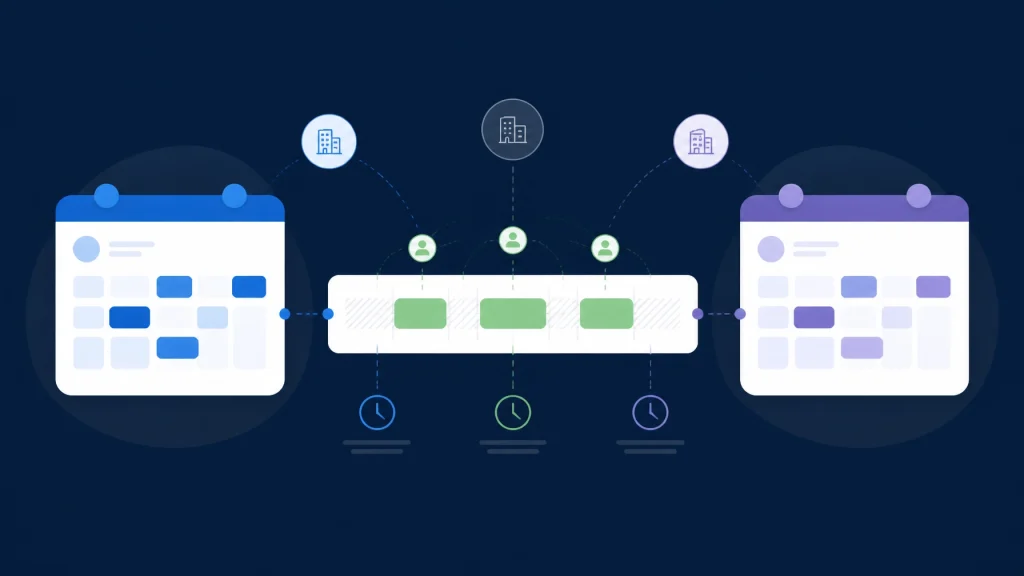
Need an outlook google calendar availability checker for meetings with vendors, clients, or partners? The problem usually is not that Google Calendar or Outlook lacks free/busy features. The problem is that each organization controls its own calendar permissions, sharing policies, and security boundaries. CalendarConnect gives every participant one simple workflow: authorize Google, Outlook, or Apple once, see mutual availability in one view, and choose a workable time without migrating calendars.
Google Calendar and Outlook do not share availability automatically
Google Calendar and Microsoft Outlook can both show free and busy status. They do not automatically create a shared availability view across unrelated organizations, however.
Each platform protects calendar data within its own account, domain, or tenant. An organization may also restrict what employees can share with external users. As a result, a Google Workspace user and a Microsoft 365 user cannot simply add each other’s calendars and expect complete external visibility.
Google Workspace administrators can limit external sharing to only free/busy information, which hides event names and details. Individual users can also share a calendar with a specific person and choose the “See only free/busy” permission. Google explains these controls in its official calendar sharing documentation and calendar sharing guide.
Outlook offers similar permission levels, including “Can view when I’m busy.” But external access still depends on the sender’s sharing settings, the recipient’s organization, and administrator policies. Microsoft documents these options in its guide to sharing an Outlook calendar as view-only.
For Microsoft 365 organizations, cross-tenant free/busy sharing can also require administrative configuration. Microsoft’s Cross-Tenant Access Policy documentation explains that organizations control inbound access and that both organizations need complementary policies for bidirectional sharing.
That is why an external partner may see only limited information: or nothing at all: even when both companies use modern business calendar software.
The real problem is cross-company calendar coordination
Suppose your project team uses Google Calendar. Your implementation partner uses Outlook. A vendor uses another Microsoft 365 tenant. A consultant uses Apple Calendar.
You still need to schedule one meeting.
The calendars work well inside their own environments. The friction starts at the boundary between companies. Your team cannot automatically see the vendor’s calendar, and the vendor cannot automatically see yours. Even when sharing is technically possible, someone has to configure permissions, send an invitation, accept access, and confirm that the information is current.
This creates a familiar sequence:
- “What time works for you?”
- “I’m free Tuesday afternoon.”
- “Does Wednesday at 10 work?”
- “Which time zone?”
- “I have a conflict now. Can we move it?”
For teams that schedule meetings with external clients, this process quickly becomes expensive. It delays approvals, slows sales conversations, and makes project coordination harder than it needs to be.
A basic meeting scheduler app may help one person share a booking link. But complex multi company meeting scheduling requires more: visibility across participants, organizations, calendar systems, and time zones.
Exports and screenshots create more work
When direct sharing is unavailable, teams often fall back to calendar exports, screenshots, or manual status emails.
These methods appear simple. They are not reliable for ongoing coordination.
Calendar exports become stale
Google Calendar and Outlook support publishing or exporting calendar information in formats such as ICS. Microsoft also documents Internet Free/Busy publishing through a user-specified URL. These tools can help in specific situations, but they do not automatically create a live, mutual scheduling workspace for several external organizations.
An exported calendar may reflect one point in time. New meetings, cancellations, travel, and time-zone changes can make it inaccurate. Someone must refresh the file or feed, interpret it correctly, and compare it with every other participant’s schedule.
Screenshots reveal more than availability
A screenshot can include event titles, client names, locations, project information, internal attendees, or confidential notes. Even if the screenshot is intended to show only a few open times, it can expose much more than the recipient needs.
It is also difficult to revoke. Once an image is sent by email or stored in a shared folder, you may not know where it has been copied.
Manual status emails do not scale
A message such as “I’m available Thursday from 1 to 3” creates a temporary record, not a dependable source of truth. It does not account for other attendees, and it becomes incorrect when the sender’s calendar changes.
Manual updates are especially difficult for recurring meetings. Checking four or five future dates by email can turn a routine request into a long coordination thread.

Free/busy sharing gives partners the right amount of information
External participants usually do not need to know what is on your calendar. They only need to know whether you are available.
That distinction matters.
Google’s “See only free/busy” permission hides event names and details. Outlook’s “Can view when I’m busy” option provides the same basic principle. Both systems recognize that availability can be useful without exposing the contents of every appointment.
A strong free busy calendar across organizations should follow that same rule:
- Show available and unavailable time.
- Hide event titles and descriptions.
- Keep attendee lists private.
- Avoid sharing locations unless required.
- Give each participant control over authorization.
- Allow access to be revoked.
This is the foundation of privacy-first free busy calendar sharing. It reduces scheduling friction without turning an external partner into a viewer of your internal calendar.
CalendarConnect creates one shared availability view
CalendarConnect is a cross-team calendar availability tool designed for the space between organizations.
Each participant authorizes their calendar once:
- Create a project. Add participants from any company using their email addresses.
- Connect calendars. Each participant authorizes Google, Outlook, or Apple.
- View mutual availability. CalendarConnect combines free/busy status in one shared view.
- Choose a slot. Select a time that works for everyone.
- Send the invitation from your calendar. The organizer creates and sends the actual meeting invite through their existing Google Calendar, Outlook, or Apple Calendar workflow.
You do not need to migrate calendars. You do not need to replace Google Calendar or Outlook. You keep using the tools your organization already relies on.
CalendarConnect acts as an availability layer across them. It helps you coordinate calendars across companies without asking every participant to adopt the same calendar platform.
The result is practical: you can find meeting times across companies without comparing separate screens, exporting files, or sending another availability email, then send the final invitation from the calendar you already use.
Use one workflow for external participant calendar availability
CalendarConnect is useful for:
- Project managers coordinating implementation teams
- Sales teams scheduling demos with prospective customers
- Consultants working with client stakeholders
- Procurement teams meeting with vendors
- Partnership managers coordinating joint initiatives
- Executive assistants arranging meetings across companies
- Government teams scheduling meetings with external suppliers
Whether you are coordinating two organizations or five, the workflow stays the same. Participants authorize access once, and the project displays the mutual openings.
This is different from relying on a single company’s scheduling settings. It is designed for cross organization calendar coordination, where every participant may belong to a different domain, tenant, or calendar system.

Find a meeting time across time zones in one view
Time zones add another layer of risk. A slot that looks open at 10:00 AM for one person may be 7:00 AM for someone else.
CalendarConnect displays availability in each participant’s local time and highlights mutual openings. You can compare the schedules of everyone involved before sending an invitation from your existing calendar.
Microsoft’s Graph documentation on free/busy schedules shows why time-zone handling matters. Calendar availability data is returned for a defined time range and can be represented in a requested time zone. A scheduling workflow still needs to interpret that information correctly for the people attending.
CalendarConnect handles that comparison in the shared view. You can see whether a proposed time works for all participants: not just whether one person appears free.
That makes it easier to:
- Schedule a meeting across four time zones.
- Avoid early-morning or late-evening conflicts.
- Compare working hours.
- Check recurring availability across several weeks.
- Reduce rescheduling after invitations are sent.
Why CalendarConnect is better than switching calendar systems
A common response to cross-company scheduling friction is to ask everyone to use the same tool. That approach rarely works.
Your customers, vendors, and partners already have established systems. Some use Google Workspace. Others use Microsoft 365. Some use Apple calendars or a combination of tools. Requiring a migration creates new training, administration, and adoption problems.
CalendarConnect keeps your existing workflow in place:
- No calendar migration.
- No replacement for Google or Outlook.
- No screenshots or exported files.
- No need to expose event details.
- No repeated availability emails.
- One authorization per participant.
It works as shared calendar software for external coordination while allowing each company to maintain its own internal system.

Fix the availability gap without adding complexity
Google Calendar and Outlook are not failing. They are protecting organizational boundaries.
Their built-in sharing features can work when administrators configure the right permissions and both parties follow the same process. But that setup becomes difficult when you regularly work across multiple companies, calendar systems, and time zones.
CalendarConnect gives you a simpler option. Invite participants, let them authorize their calendars once, and see mutual free/busy availability in one place. After you choose a time, send the actual invitation through your existing Google Calendar, Outlook, or Apple Calendar workflow.
Use CalendarConnect as your calendar scheduling tool and team scheduling tool for the work that happens beyond your organization. You can schedule faster, protect private calendar details, and keep your existing tools.
Start connecting calendars with CalendarConnect and replace scattered coordination with one clear shared view.
Sources
- Google Workspace: Set Google Calendar sharing options
- Google Calendar Help: Share your calendar
- Microsoft Support: Share an Outlook calendar as view-only with others
- Microsoft Learn: Cross-Tenant Access Policy for sharing free/busy and calendars
- Microsoft Learn: Get free/busy schedules of Outlook calendar users and resources
- Microsoft Learn: How to use Internet Free/Busy in Outlook