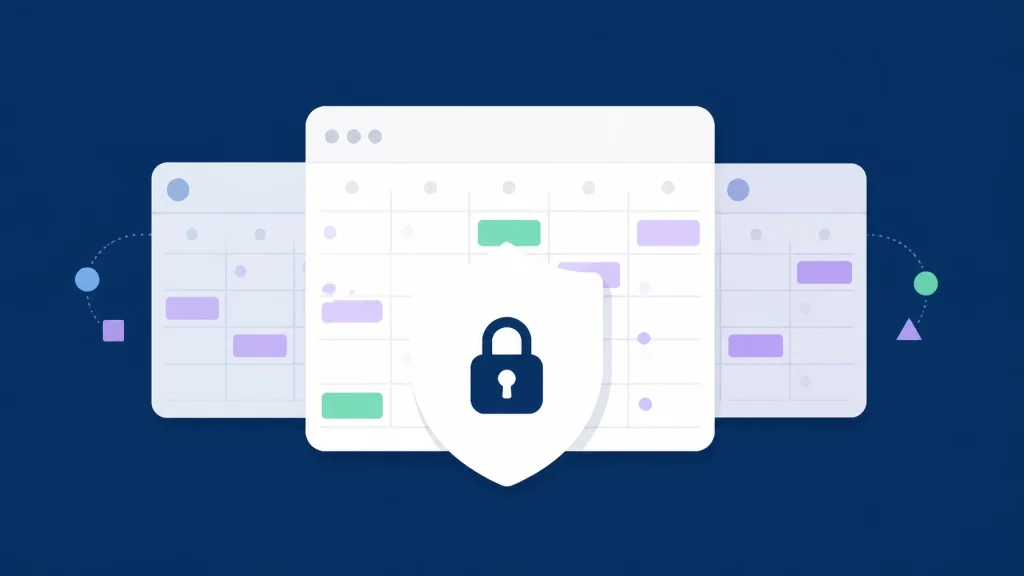
Sharing your full calendar may make coordination easier, but it can expose far more information than an external partner needs. Meeting titles, attendees, locations, project names, and personal appointments can all reveal sensitive business context. Free busy calendar sharing offers a safer alternative: show when you are available without exposing what fills your schedule.
For teams that need to schedule meetings with external clients, vendors, or partners, the goal is simple. Share availability. Protect details. Find a time that works across organizations without creating unnecessary access to your calendar.
Full calendar access reveals more than your availability
A full calendar does not only show whether you are busy. It can expose the context behind every time block.
Depending on the permission level and calendar provider, an external viewer may see:
- Meeting titles and project names
- Internal and external attendee names
- Office locations, meeting rooms, or travel details
- Descriptions, attachments, and preparation notes
- Customer, vendor, or partner relationships
- Personal appointments and sensitive commitments
- Recurring patterns that reveal team routines or working hours
Google Calendar distinguishes between “See all event details” and “See only free/busy (hide details).” Google states that free/busy access hides event names, descriptions, locations, and task details, while full detail access reveals event information. Google’s calendar visibility documentation explains how these settings affect what other people can see.
Microsoft Outlook provides similar options, including “Can view when I’m busy,” “Can view titles and locations,” and “Can view all details.” The available level for external users may also depend on Microsoft 365 organization settings. Microsoft’s external calendar sharing documentation outlines these controls.
The risk is not that every external partner will misuse information. The risk is that you are granting access to information they do not need for scheduling.

Free/busy visibility answers the only scheduling question
When you coordinate a meeting, the essential question is usually:
Is this person available at this time?
You do not need to know why they are unavailable.
That is the principle behind free busy calendar across organizations workflows. External participants can see available and busy periods, while event content remains private. Google’s Calendar API describes this limited permission as freeBusyReader, which allows someone to see whether a calendar is free or busy without accessing event details. Read Google’s API sharing documentation.
| Access level | What an external partner sees | Appropriate use |
|---|---|---|
| Full details | Titles, locations, descriptions, attendees, and times | Trusted internal administration |
| Titles and locations | Basic meeting context plus availability | Limited internal coordination |
| Free/busy only | Available and busy time blocks | External scheduling and partner coordination |
Free/busy access follows the principle of sharing the minimum information required to complete the task. It does not eliminate every privacy or security consideration, but it significantly reduces the amount of calendar content exposed.
Five ways full calendar sharing can create unnecessary exposure
1. Meeting titles can reveal confidential projects
A calendar title such as “Acquisition Planning,” “Customer Escalation,” or “Product Launch Review” may reveal business activity before it is public.
Even a short title can provide context about priorities, negotiations, or organizational changes. An external partner does not need that information to select an open time.
2. Attendee lists can reveal relationships
The people invited to a meeting may be as sensitive as the meeting itself.
Attendee names can expose:
- Which vendors you are evaluating
- Which customers are involved in a project
- Who reports to whom
- Which legal, HR, or finance teams are engaged
- Whether two organizations are working together
A free/busy view avoids exposing those relationships while still providing external participant calendar availability.
3. Locations and descriptions may expose operational details
Room names, office addresses, travel plans, video links, and meeting descriptions can all create additional exposure.
A location may reveal where an executive will be. A description may include a customer issue, contract reference, or internal action list. These details are useful to invited participants, but they are not necessary for someone trying to book a new meeting.
4. Personal appointments can become visible
Work calendars often contain personal appointments, medical visits, family commitments, or private reminders.
Even when an event is marked private, visibility behavior can vary by platform, permission level, resource calendar, and organization policy. Apple, for example, supports private calendar sharing and public calendar links with different access models. Apple’s iCloud calendar sharing guide explains that public calendars can be viewed by anyone with the link, while private calendars use invited participants and assigned permissions.
5. Broad access is harder to manage over time
Calendar sharing often continues after the original business need has ended.
A partner may change roles. A project may close. A shared link may be forwarded. An employee may forget which calendars are still visible to external contacts. The more detail you share, the more important ongoing permission reviews become.
This is why shared calendar software should make access boundaries clear and easy to control: not simply make more calendar data available.
Use privacy-first calendar coordination instead
CalendarConnect is built for cross company scheduling without requiring participants to expose their full calendars.
The workflow is straightforward:
- Create a project.
- Add participants from different organizations.
- Each participant authorizes their calendar once.
- CalendarConnect checks mutual free/busy availability across connected calendars.
- Select a mutual opening.
- Send the actual calendar invitation from your existing Google, Outlook, or Apple Calendar.
Participants share free/busy status: not meeting titles, descriptions, attendee lists, or other calendar content. CalendarConnect provides privacy-first mutual visibility across organizations so you can choose a time with confidence, then send the invite through the calendar you already use.
CalendarConnect supports Google, Outlook, and Apple calendars, allowing teams to coordinate calendars across companies without asking everyone to adopt a new calendar system. Your existing calendars remain in place. No migration is required.

Find mutual time without exposing the source calendars
CalendarConnect combines availability into one shared view. You can see where schedules overlap across vendors, clients, partners, and internal teams.
That makes it useful for:
- Multi company meeting scheduling with vendors and customers
- Cross organization calendar coordination for project teams
- A cross team calendar availability tool for sales and partnerships
- Recurring meetings that require checking several weeks at once
- Finding time across multiple time zones
- Booking meetings without long email exchanges
Instead of opening each calendar and manually comparing appointments, you can find meeting times across companies from one availability view.
This is different from sharing a full calendar link. The shared view is designed around the scheduling outcome: identify a mutual slot with privacy-first free/busy visibility across organizations, then send the invitation through your existing calendar. The underlying event details stay private.
Choose the right permissions for the job
Whether you use a calendar scheduling tool, meeting scheduler app, or business calendar software, start with the least access needed.
Use this checklist before sharing calendar information externally:
- Share availability, not event content.
- Avoid exposing titles, locations, descriptions, and attendees.
- Review whether external sharing is controlled by your organization’s admin policy.
- Use private invitations instead of public calendar links where possible.
- Confirm which calendar systems your partners use.
- Revoke access when a project or relationship ends.
- Explain clearly what the scheduling service can and cannot access.
An outlook google calendar availability checker should not require full calendar visibility simply because the participants use different platforms. The same standard should apply to any team scheduling tool: connect the calendars, compare free/busy status, and keep unnecessary content out of the workflow.

CalendarConnect keeps external scheduling focused
You should not have to choose between slow coordination and excessive calendar exposure.
CalendarConnect provides a privacy-first way to manage cross organization calendar coordination:
- Connect Google, Outlook, or Apple calendars.
- Authorize access once.
- Share free/busy status only.
- View mutual openings across organizations and time zones.
- Check recurring availability across multiple weeks.
- Choose a time, then send the invitation through your existing calendar.
- Avoid migration and unnecessary new workflows.
For teams that need a free busy calendar across organizations, the practical answer is limited visibility with clear purpose. Share when you are free. Keep the reason private.
Start with a safer approach to cross company scheduling: connect your calendars with CalendarConnect.
Sources and further reading
- Google Calendar: Change event and task visibility
- Google Calendar API: Sharing and access control
- Microsoft: Share Microsoft 365 calendars with users outside your organization
- Microsoft: Share an Outlook calendar as view-only with others
- Apple: Share a calendar on iCloud.com
- CalendarConnect: Cross-company scheduling
WordPress category: CalendarConnect