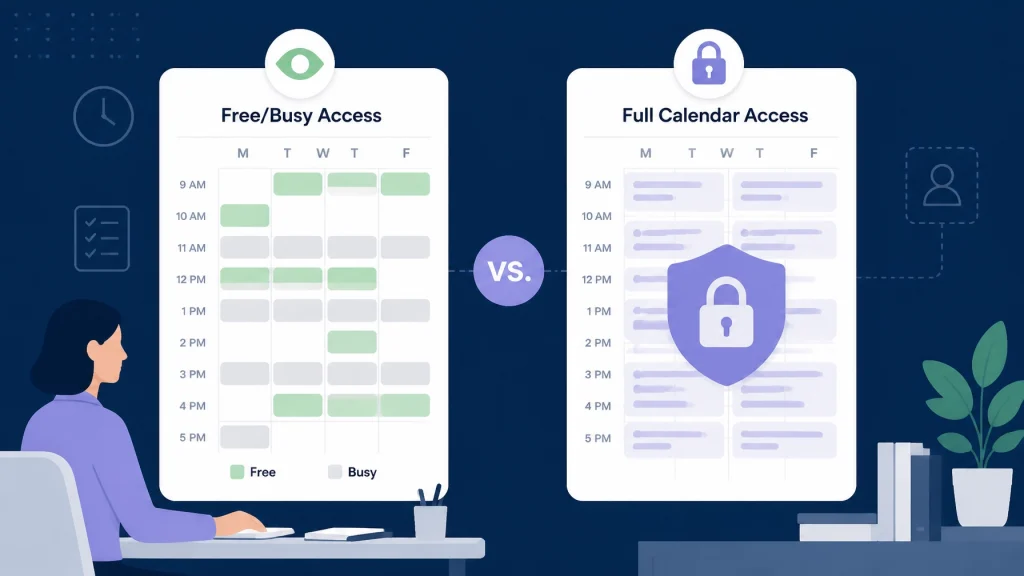
Free/busy calendar sharing helps you coordinate meetings without exposing what each person is doing. This guide explains the difference between free/busy, limited details, and full calendar access: and shows how office administrators can choose the right permission level for internal teams, external partners, and scheduling tools.
WordPress category: CalendarConnect
If you coordinate executives, vendors, clients, or project teams, you already know the scheduling problem: everyone needs to find a workable time, but nobody needs to see everyone else’s private meeting details.
That is where calendar permissions matter.
The right access level lets people see when someone is available without exposing confidential event titles, attendees, notes, or locations. The wrong level can create unnecessary privacy risks: or make scheduling harder than it needs to be.
For most external meetings, free/busy access is the practical default. Full calendar access should be reserved for trusted roles that genuinely need to manage events.
The short answer: share availability, not event content
Calendar access generally falls into three levels:
- Free/busy: Shows whether someone is available.
- Limited details: Shows availability plus selected information, such as the event subject or location.
- Full access: Shows complete event details and may allow someone to create, edit, or delete events.
| Permission level | What the other person can see | Best for | Main concern |
|---|---|---|---|
| Free/busy only | Available, busy, tentative, or out of office time blocks | External partners, clients, scheduling tools, cross-company meetings | They cannot see why someone is busy |
| Limited details | Availability plus selected fields such as subject and location | Trusted internal teams or defined business relationships | Meeting context may reveal sensitive information |
| Full calendar access | Event titles, descriptions, attendees, locations, and sometimes attachments | Executive assistants, delegates, calendar owners, resource managers | Too much information may be exposed |
| Editor or delegate access | Full details plus the ability to create or change events | Executive support and operational calendar management | Someone else can alter the schedule |
The best permission is the lowest level that still supports the task.

Free/busy access shows when someone is available
Free/busy access answers one question:
Can this person meet during this time?
A free/busy view typically shows:
- Open time
- Busy time
- Tentative time
- Out-of-office time
- Start and end times for unavailable blocks
It does not show:
- Meeting titles
- Descriptions or notes
- Attendee lists
- Video conference links
- Attachments
- Sensitive client or project information
This makes free/busy the most useful permission level for external participant calendar availability. A vendor can identify an opening without learning what is on your executive’s calendar.
Microsoft describes this model through Exchange organization relationships, which can be configured to share no access, availability only, or availability with time, subject, and location. Microsoft’s Exchange documentation explains these organization relationship settings.
Google Calendar provides a similar distinction through its FreeBusy query. The response returns busy time ranges rather than full event objects. Google’s official Freebusy API documentation shows that the result contains calendar identifiers and busy intervals with start and end times.
For most meeting coordination, that is enough.
Limited details add context: but also add exposure
Limited access sits between availability-only and full access.
Depending on the calendar platform, it may reveal:
- The event subject
- The event location
- The start and end time
- Whether the event is private
This can help internal teams understand whether a time is genuinely usable. For example, an office administrator may need to distinguish between a tentative internal hold and a confirmed client meeting.
However, limited details are not always appropriate for external sharing. A subject such as “Acquisition Planning,” “Employee Review,” or “Customer Renewal Risk” may disclose more than intended: even without showing the event description.
Use limited details when:
- The recipients are trusted colleagues.
- The information is operationally useful.
- Your organization has approved the sharing level.
- Event subjects and locations do not contain sensitive information.
- Users understand how private events are handled.
Do not treat limited details as equivalent to free/busy. It exposes context, and context can be confidential.
Full access exposes the calendar: and may allow changes
Full calendar access can include:
- Complete event titles
- Descriptions and notes
- Attendees
- Locations
- Conference links
- Attachments
- Private or personal scheduling context, depending on permissions
- The ability to create, edit, or delete events when edit rights are included
Full access is appropriate when someone is responsible for managing the calendar, not simply finding a meeting time.
Common examples include:
- An executive assistant managing an executive’s calendar
- A delegate rescheduling meetings on someone’s behalf
- A department administrator managing a shared team calendar
- A facilities coordinator managing room or equipment calendars
- An operations team maintaining a resource schedule
Even then, grant only the role required. A person who needs to see event details may not need permission to delete or move them.
Microsoft Graph’s getSchedule documentation makes this distinction clear. The API can return free/busy schedules and working hours, while additional event properties such as subject or location depend on the user’s calendar settings and permissions.
Google, Outlook, and Apple handle sharing differently
Your calendar platform affects how permissions are configured.
Google Calendar
Google supports free/busy queries for multiple calendars. The official API can return busy intervals without returning event content. Google lists a free/busy-specific authorization scope, calendar.events.freebusy, alongside broader read-only and read/write scopes.
For a third-party scheduling tool, prefer the narrowest authorization that supports the task. A meeting scheduler app does not normally need access to every event description in a user’s calendar.
Microsoft 365 and Outlook
Microsoft 365 supports several levels of external calendar visibility through Exchange organization relationships and individual calendar permissions:
- No access
- Free/busy time only
- Free/busy time, subject, and location
- Reviewer or higher permissions for full event details
- Editor or delegate permissions for calendar management
Microsoft Graph can also retrieve availability for users and resources through getSchedule. That makes it possible to build a business calendar software workflow around availability rather than full event content.
Apple Calendar and iCloud
Apple’s native iCloud calendar sharing uses read-only and editing permissions for shared calendars. Apple’s iCloud documentation explains that read-only participants can view a shared calendar, while participants with editing access can create, edit, and delete events.
For organizations using Google Workspace or Microsoft 365 on Apple devices, the underlying server permissions still control what is shared. Apple Calendar displays the access provided by the connected calendar service.
CalendarConnect is designed to support cross-platform scheduling across Google, Outlook, and Apple calendar environments. Google and Outlook connections are available today, while Apple Calendar connectivity is marked as coming soon. The goal is simple: coordinate across calendar systems without requiring a migration.

Use free/busy when coordinating across companies
External scheduling is where oversharing becomes most avoidable.
A vendor does not need to know why your project manager is busy. A client does not need to see the title of an internal leadership meeting. A partner does not need access to private notes just to suggest a meeting time.
For free busy calendar across organizations, use a process that shares only mutual availability:
- Identify the participants.
- Confirm the meeting duration and working-hour boundaries.
- Share free/busy status only.
- Compare calendars across time zones.
- Select a mutual opening.
- Send the invitation through the participants’ existing calendars.
This approach replaces email threads with a shared availability view while keeping event content private.
CalendarConnect follows this privacy-first model. Each participant authorizes calendar access once. Participants connect Google or Outlook, and CalendarConnect reads free/busy status rather than meeting titles, descriptions, or attendee lists. The platform then helps office administrators compare mutual availability across companies and time zones.
There is no calendar migration. Your team keeps using its existing calendar system, and the organizer sends the actual invitation through Google Calendar, Outlook, Apple Calendar, or another calendar already in use.
A practical permission policy for office administrators
A simple policy can prevent most access problems:
Default for external organizations
Use free/busy only.
This is the right baseline for:
- Vendors
- Clients
- Partners
- Contractors
- External consultants
- Cross-company scheduling tools
Default for internal colleagues
Choose between free/busy and limited details based on your organization’s culture and the sensitivity of calendar information.
If employees regularly work with confidential clients, legal matters, personnel issues, or strategic projects, free/busy is the safer default.
Approved exceptions
Document which roles may receive full access:
- Executive assistants
- Delegates
- Calendar administrators
- Resource managers
- Specific operations roles
Review these permissions regularly. Remove access when responsibilities change.

How CalendarConnect reduces external scheduling friction
Traditional shared calendar software often assumes everyone belongs to the same organization. That breaks down when participants use different companies, domains, and calendar systems.
CalendarConnect is built for the space between companies:
- Free/busy only: Partners see when you are available, not what you are doing.
- One-time authorization: Each participant connects their calendar once.
- Cross-company visibility: Compare mutual availability across vendors, clients, and partners.
- Google and Outlook compatibility: Connect the calendars teams already use.
- Apple support planned: Apple Calendar connectivity is coming soon.
- Time-zone awareness: Availability is shown in each participant’s local time.
- No migration required: Keep your existing calendar and workflow.
- Organizer-controlled invites: Once you choose a mutual slot, the organizer sends the actual meeting invitation through their existing calendar system.
If you need a calendar scheduling tool for external partners, learn more about CalendarConnect or start connecting calendars.
The office admin’s final checklist
Before granting calendar access, ask:
- Does this person need availability or event content?
- Does the recipient work inside or outside the organization?
- Do they need to edit events, or only view them?
- Could event titles reveal confidential information?
- Is a narrower permission level available?
- Is the access still required?
- Can the user revoke or review the authorization later?
When the answer is simply “find a time that works,” free/busy access is usually enough.
Share availability. Keep event content private. Give full access only when the responsibility truly requires it. That balance lets you coordinate meetings efficiently without turning every scheduling request into a disclosure of your organization’s internal calendar.