Schedule meetings with external clients faster with a meeting scheduler app that helps you find meeting times across companies—see mutual availability and book in minutes.
You can schedule meetings with external clients in minutes: without sending a string of “Does Tuesday work?” emails.
The challenge is rarely finding an open time on your own calendar. The delay starts when you need to compare availability across different companies, time zones, work schedules, and calendar systems.
One person uses Google Calendar. Another uses Outlook. A vendor checks Apple Calendar. Everyone has meetings you cannot see, and no one wants to share private event details just to find a 30-minute opening.
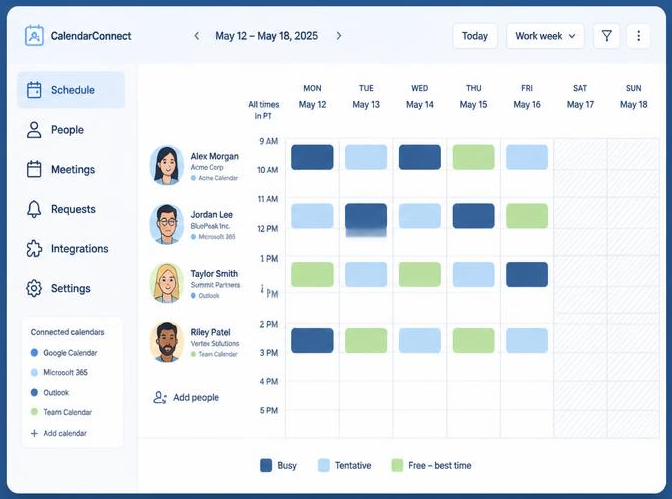
CalendarConnect gives you one shared view of real free/busy availability across organizations. You invite participants, they authorize access once, and mutual openings appear automatically.
No calendar migration. No manual comparison. No meeting-details exposure.

Start with the result: one mutual slot everyone can use
The fastest way to schedule an external meeting is to stop guessing.
Instead of proposing several times and waiting for replies, create a project in CalendarConnect and add the people who need to attend. Each participant connects their calendar once. CalendarConnect then checks availability across companies and highlights the slots that work for everyone.
You see:
- Who is free
- Who is busy
- Which slots work for all participants
- How each option appears in the local time zone
- Whether a recurring meeting will create conflicts later
This is cross-company scheduling in one view. It works for client calls, vendor reviews, partnership meetings, sales conversations, procurement discussions, and project planning sessions.
Use this five-minute workflow
1. Add every participant
Start by creating a project and adding the external clients, vendors, partners, or colleagues who need to attend.
You can add participants from different organizations. Their company does not need to use the same calendar platform as yours.
This is the first advantage of a cross team calendar availability tool: you do not need to collect screenshots, manually compare calendars, or ask each person to list their open hours.
Add the participants once. CalendarConnect handles the availability check from there.
2. Let each person authorize access once
Each participant receives an invitation to connect their calendar. They authorize free/busy access through their calendar provider.
The process is designed to be simple:
- Open the invitation.
- Connect Google or Microsoft.
- Approve free/busy access.
- Return to the shared project.
After that, their availability can be checked for the project without repeating the same setup every time.
CalendarConnect does not access or store meeting titles, descriptions, attendee lists, or private event content. Participants can see availability status: not the details behind a busy block.
That makes free busy calendar sharing practical for client-facing work. You get the information required to schedule. You do not expose information that should remain private.
3. See mutual availability across companies
Once participants connect, CalendarConnect overlays their calendars in one shared view.
Green indicates that everyone is available. Other status indicators show when some or most participants are busy. Mutual slots are highlighted so you can focus on the times that are ready to book.
This is how you find meeting times across companies without opening several calendars side by side.
It also supports multi company meeting scheduling when a project includes several organizations. A client, agency, software vendor, and internal team can all be checked in the same workflow.
You are not comparing calendars manually. You are selecting from the openings that already work.

4. Choose a time that works in every time zone
Time zones create unnecessary confusion when they are handled manually.
A time that looks convenient for you may be early morning for a client, outside working hours for a vendor, or on the following calendar day for another participant. Daylight saving changes can create another layer of risk.
CalendarConnect displays available slots in each viewer’s local time zone. Working hours travel with the participant, so you can find a practical overlap instead of simply finding an empty block.
Before booking, confirm three details:
- The date
- The time
- The participant’s local time zone
This follows a basic best practice for international scheduling: never send a time without labeling the date and time zone. Resources such as Prialto’s guide to scheduling across time zones and OnceHub’s time-zone scheduling guidance recommend clearly identifying local times and accounting for daylight saving changes.
With CalendarConnect, the conversion happens in the availability view. You can focus on choosing the right meeting time.
5. Book the selected slot
Select a mutual opening and book it.
Calendar invites go out through the participants’ existing calendar systems. The meeting appears in the right local time for each person, without requiring anyone to adopt a new calendar or move existing events.
This is the point where a meeting scheduler app should remove work: not create another workflow.
CalendarConnect works with Google Calendar and Microsoft 365/Outlook. Apple Calendar support is planned, and no calendar migration is required. You continue using the tools your team already relies on.
Keep meeting details private
External scheduling should not require external access to your calendar contents.
CalendarConnect uses a privacy-first model:
- Free/busy only: Participants see whether you are available.
- No event titles: They do not see the names of your meetings.
- No descriptions: Private notes remain private.
- No attendee lists: Other participants are not exposed.
- One-time authorization: Connect your calendar once for the project.
- Revocable access: You can revoke calendar access through your provider.
This is the difference between sharing availability and sharing your calendar.
For teams evaluating business calendar software or shared calendar software, permission controls matter as much as scheduling speed. The right tool should show enough information to coordinate calendars across companies without revealing more than necessary.
Handle recurring meetings before they become a problem
A single meeting may fit easily. A recurring meeting is more difficult.
The first Tuesday of the month may work. The second Tuesday may conflict with a client review. A weekly meeting may shift into a holiday, a new project commitment, or a different time zone after daylight saving changes.
CalendarConnect’s recurring availability checker evaluates multiple occurrences across a selected period. You can review a recurring schedule over 4 to 12 weeks and see which participants are available for each instance.
That gives you a clearer answer before you send the first invite:
- Which dates work for everyone
- Which dates create conflicts
- Who is unavailable
- Whether another recurring pattern is better
You can plan the schedule once instead of repairing it one meeting at a time.
What to look for in a cross-company scheduling tool
Whether you call it a calendar scheduling tool, team scheduling tool, or outlook google calendar availability checker, the practical requirements are the same.
Look for a tool that provides:
-
External participant calendar availability
You should be able to check people outside your company: not just coworkers on the same system. -
A free busy calendar across organizations
The view should combine availability without exposing private event data. -
Cross organization calendar coordination
Participants should not need to share the same domain, calendar provider, or internal scheduling process. -
Clear time-zone handling
Available slots should render correctly for each participant. -
One-click booking
Once you find a mutual opening, booking should take one simple action. -
No migration requirement
The scheduling layer should work with existing Google, Outlook, or Apple workflows rather than replacing them.
CalendarConnect is built around these requirements. It gives project managers, sales teams, consultants, partnership managers, and procurement teams a practical way to coordinate calendars across companies.
Replace the scheduling thread with one shared view
The old process looks familiar:
- You suggest three times.
- The client rejects two.
- The vendor is unavailable for the remaining option.
- Someone proposes a new week.
- A time-zone mistake creates another delay.
- The final invite contains the wrong local time.
A shared availability view removes most of that work.
You add the participants. They authorize access. You see mutual slots. You book the meeting.
That is cross company scheduling designed for the way business actually works: with different organizations, different tools, and different time zones.
Schedule your next external meeting faster
When you need to schedule meetings with external clients, do not wait for another round of availability emails.
Start with CalendarConnect. Connect your existing calendar, invite your participants, and find a time that works across companies in minutes.
No migration required. No private meeting details exposed. Just clear availability and a meeting on the calendar.